Big brands are recognized before you read their name: the same colors, the same fonts, the same logo, everywhere. A brand kit gives a small business or creator the same advantage. You set it up once, and every post, flyer and template can wear your brand in one click.
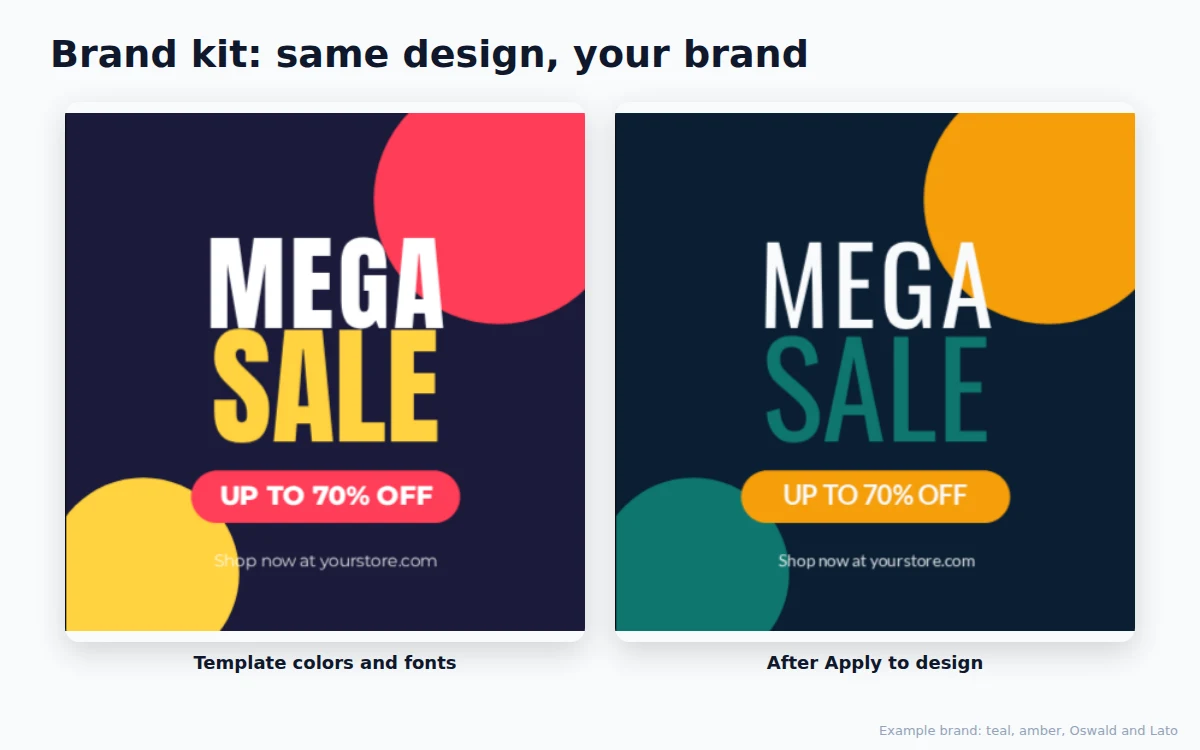
What goes into a brand kit
- Four colors with a job:
- Primary: your main color, used for big shapes and headlines.
- Secondary: an accent for buttons, badges and highlights.
- Dark: for text and dark backgrounds, often a deep navy or charcoal instead of pure black.
- Light: for light backgrounds and text on dark areas.
- Two fonts: a heading font with character (Oswald, Playfair Display, Montserrat) and a calm body font that is easy to read (Lato, Poppins, Inter).
- Your logo, ideally with a transparent background.
No logo yet? Start with our guide to design your logo first.
Step 1: Set up the brand kit
Open HF Photo Editor and go to the Canvas tab (click an empty part of the canvas so nothing is selected). Under Brand kit, press Set up brand kit.
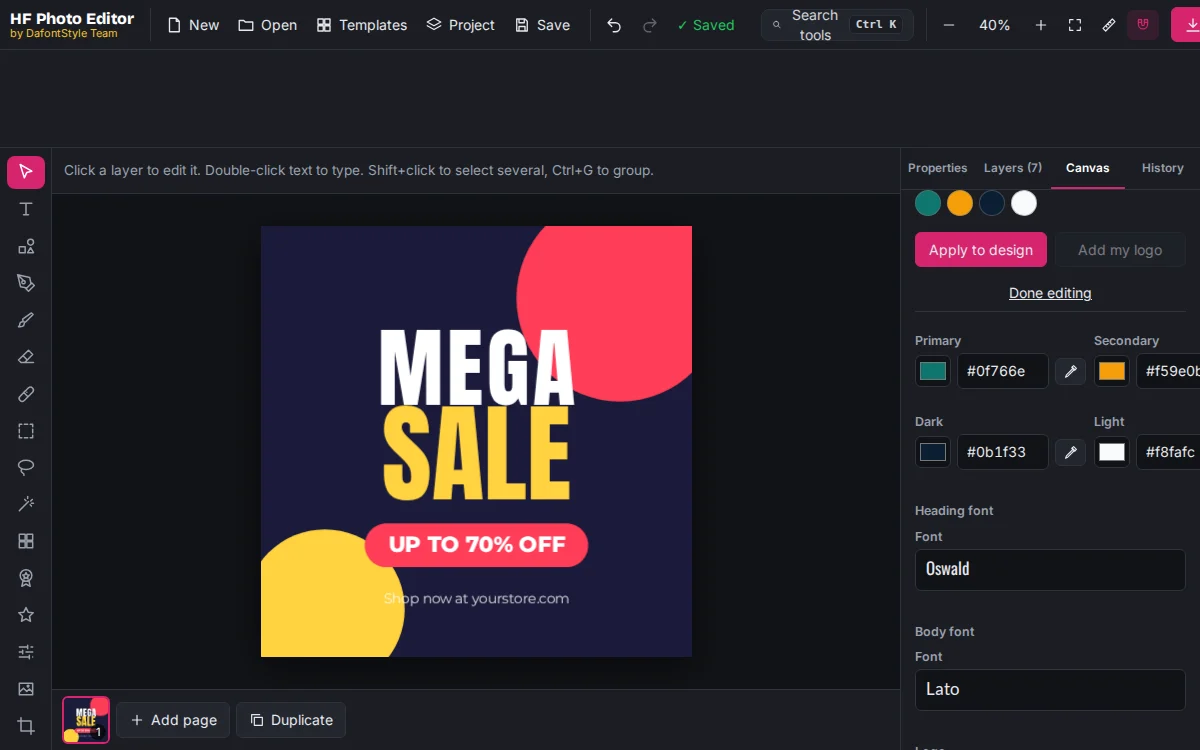
- Pick Primary, Secondary, Dark and Light, or paste the hex codes from your existing branding.
- Choose a Heading font and a Body font from the 1,700+ Google Fonts.
- Add your logo with Upload logo. If you just made it in the Logo maker, open it and press Use this design instead.
Everything saves automatically in your browser.
Step 2: Apply it to any design
Open a template, for example a sale post, and press Apply to design. In one step:
- each color is swapped for the brand color with the same job (background, main color, accent, text),
- the biggest text gets your heading font and the rest your body font,
- Urdu and Hindi text keep their own fonts, so their letters stay joined.
Press Add my logo to drop your logo in the top-left corner, then move or resize it.
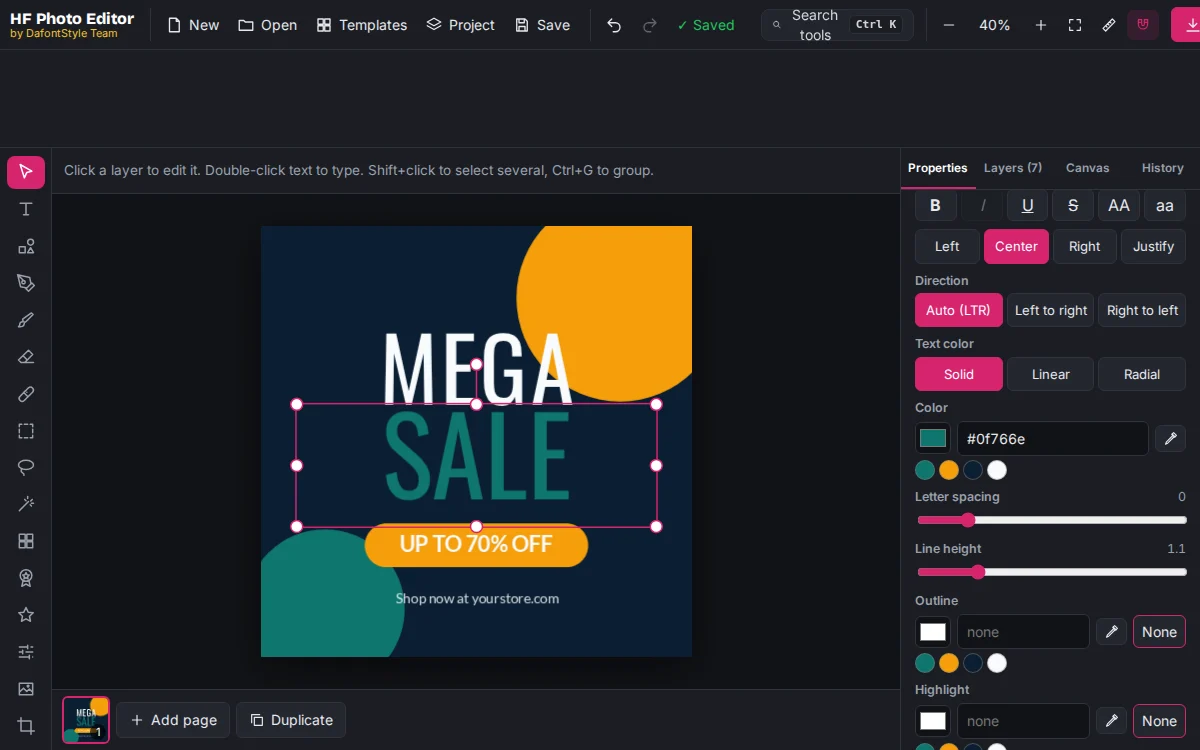
Step 3: Use brand colors everywhere
Once the kit exists, your four brand colors appear as small swatches under every color picker in the editor: text, shapes, outlines, shadows and backgrounds. One click and the color is exactly right, without copying hex codes.
Step 4: Work faster with the command palette
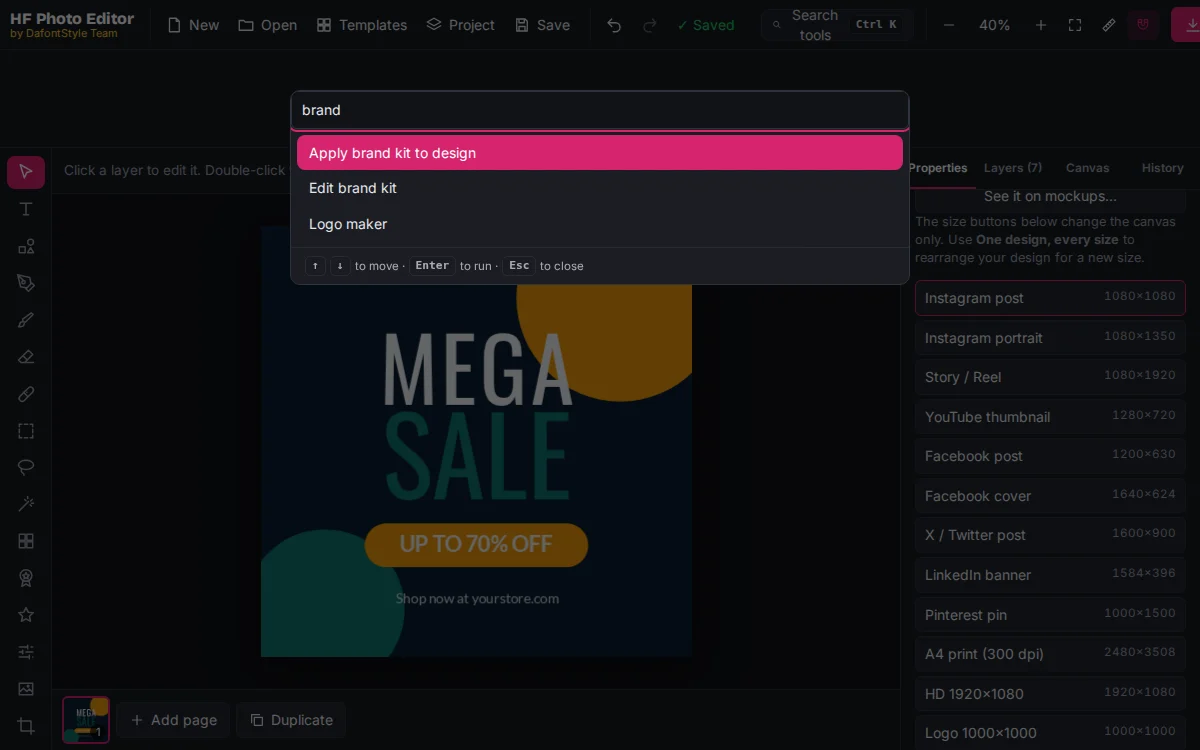
Press Ctrl+K and type "brand" to apply the kit, add your logo or edit the kit without leaving the keyboard.
Tips for a strong brand
- Stick to the kit. Recognition comes from repetition. Resist new colors for every post.
- One effect style. If you like a gold title or a soft shadow, use it every time; our text effects guide shows options that work with any color.
- Same look in small places. Use your Primary color and initials for the matching favicon for your site and for your profile picture.
- Check contrast. Dark text on Light, Light text on Dark and Primary. Avoid Secondary text on Primary unless both are very different in brightness.