A favicon is the tiny icon in the browser tab, in bookmarks and next to your website in Google results. It is only 16 pixels wide in the tab, so a full logo with words does not work. This guide shows how to make a favicon that stays clear at that size and how to add it to any website.
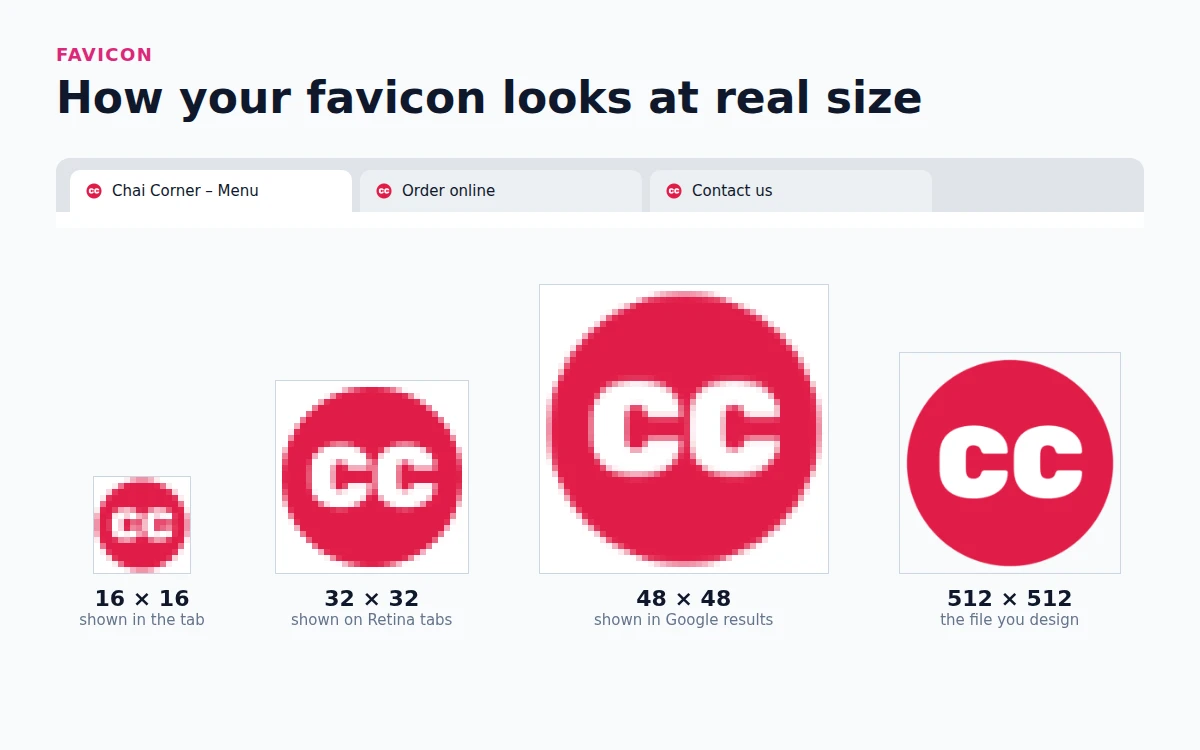
What a good favicon looks like
- One or two letters, or one icon. Your initials or the symbol from your logo. Words become unreadable.
- Bold shapes. Thin lines and small details disappear at 16 pixels.
- Strong contrast. White letters on a dark color, or dark letters on a light color.
- A square or circle that fills the space. Leave only a small margin, or the icon looks tiny next to other tabs.
Step 1: Pick a favicon design
Open the logo maker in HF Photo Editor and type your brand name. Click Favicons above the designs. Every favicon is a 512 × 512 square built for small sizes: a circle, rounded square, hexagon, diamond or shield with your initials or an icon.
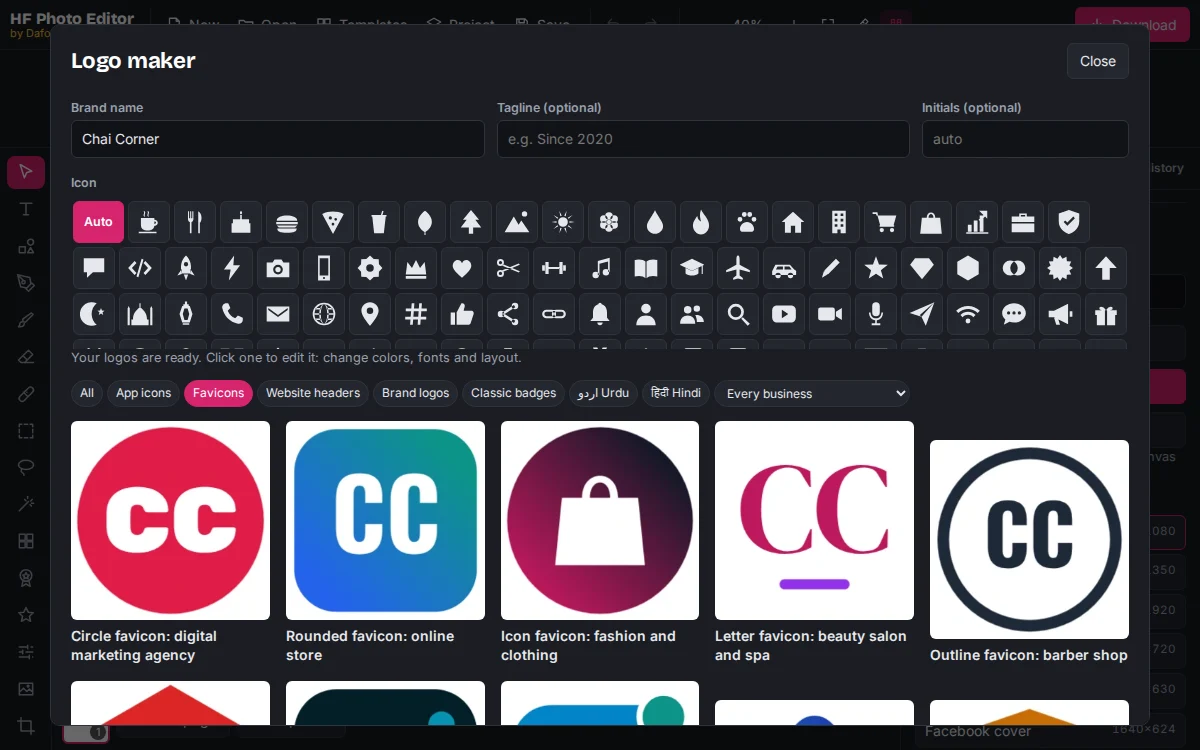
The initials come from your brand name. To use different letters, type them in Initials. Two letters work best; three only fit in a wide shape.
If you already have a logo, use its icon. Our guide to design your logo shows how to make the full set, including the favicon version.
Step 2: Adjust it
Click a design to open it in the editor. Keep the changes simple:
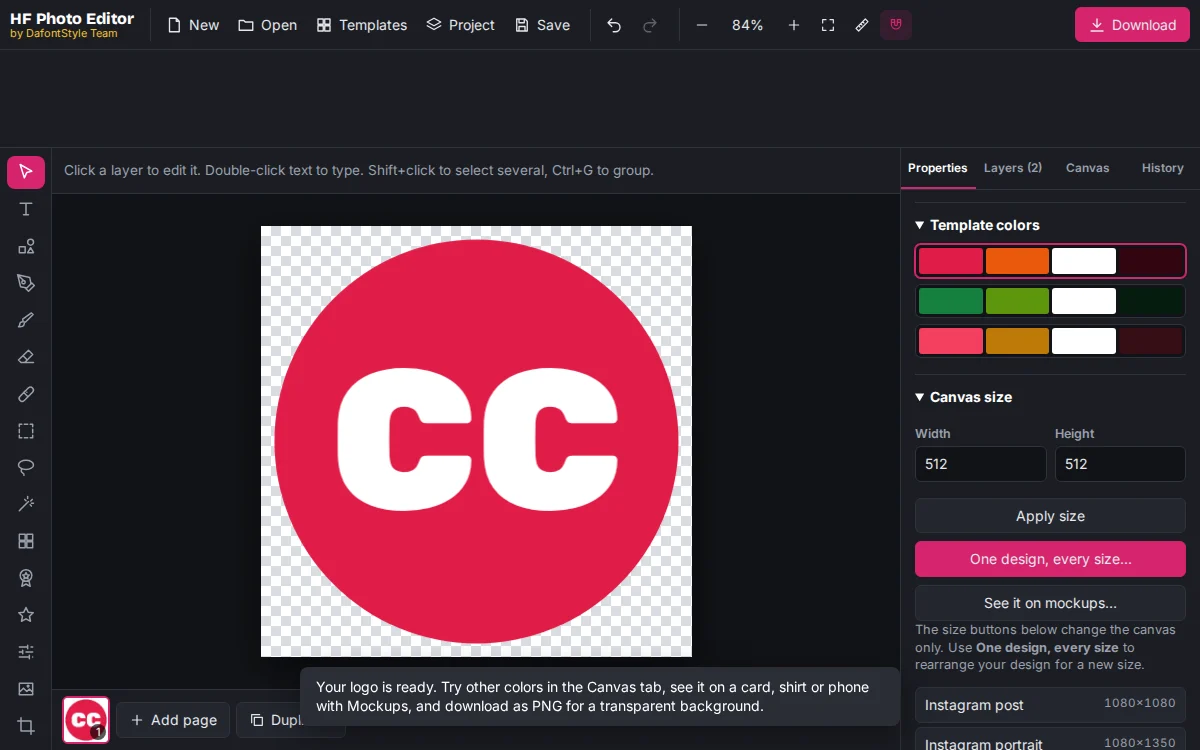
- Use the same colors as your logo. With nothing selected, choose a row under Template colors, or click the shape and pick your own color.
- Make the letters bigger rather than smaller. Click the text and raise the Size.
- Zoom out to 25 percent. If you can still read it on screen, it will work in a browser tab.
Step 3: Download the favicon
Click Download, choose PNG and set the size to 1×. You get a 512 × 512 PNG with a transparent background around the shape.
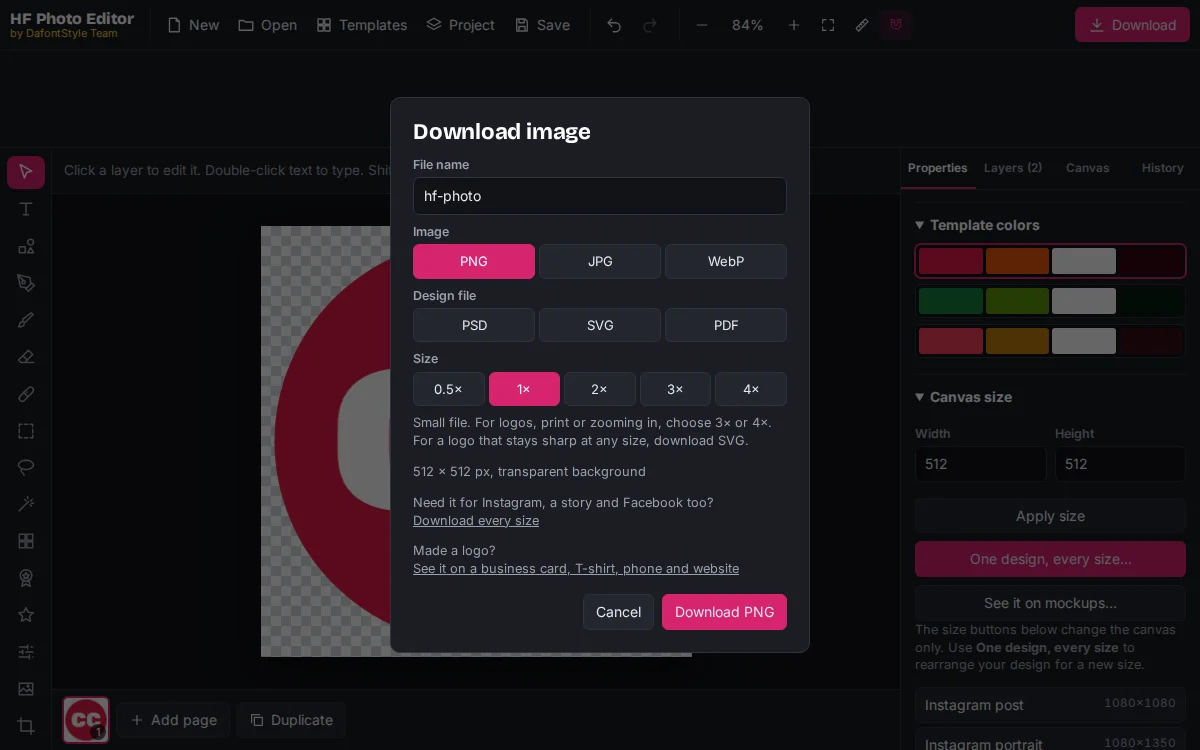
Also download an SVG. Modern browsers can use it directly, and it stays sharp on every screen. Keeping the area around the shape see-through matters on dark browser themes; our transparent PNG guide explains why.
Step 4: Add the favicon to your website
WordPress
Go to Appearance → Customize → Site Identity and upload the 512 × 512 PNG as the Site Icon. In block themes, open the Site Editor, select the Site Logo block and turn on Use as site icon. WordPress creates the smaller sizes for you.
Shopify
Open Online Store → Themes → Customize → Theme settings → Favicon and upload the PNG. Shopify scales it down automatically.
Blogger
Go to Layout, click the Favicon box and upload the PNG.
Your own HTML site
Put these files in the root folder of your site and add the tags inside <head>:
<link rel="icon" href="/favicon.ico" sizes="32x32">
<link rel="icon" href="/icon.svg" type="image/svg+xml">
<link rel="apple-touch-icon" href="/apple-touch-icon.png">
<link rel="manifest" href="/manifest.webmanifest">
icon.svgis the SVG you downloaded.apple-touch-icon.pngis a 180 × 180 PNG for iPhone home screens.favicon.icois for old browsers. Any free favicon converter can make it from your 512 pixel PNG.- The manifest lists 192 × 192 and 512 × 512 icons for Android.
If your site uses Next.js, place favicon.ico, icon.png and apple-icon.png in the app folder and the framework adds the tags for you.
For every size and what it is used for, see the favicon and app icon size chart.
Step 5: Check it
- Open your site in a new tab and look at the tab. Press Ctrl+F5 (Cmd+Shift+R on Mac) if you still see the old icon; browsers cache favicons for a long time.
- Switch your browser to dark mode. If the icon disappears, give the shape a solid background.
- Add the page to your phone home screen to see the apple-touch-icon.
Getting the favicon into Google results
Google shows your favicon next to your site in search results when:
- the icon is linked with
<link rel="icon">on your home page, - it is square and a multiple of 48 pixels (your 512 file is fine; 48, 96 and 144 also work),
- Google is allowed to crawl both the home page and the icon file.
It can take a few days or weeks to appear after Google crawls your home page again.
Next steps
The favicon and the app icon are close cousins. When you are ready to publish an Android or iPhone app, follow our steps for making an app icon from the same design.