A good logo does not need a designer or expensive software. With a free online logo maker you can type your brand name, compare hundreds of ready designs and download a sharp file in a few minutes. This guide walks you through every step, from choosing a style to downloading the files you need.
What makes a good logo
Before you start, keep these four rules in mind. They decide whether a logo still works on a tiny phone screen and on a big shop sign.
- Simple. One icon and one or two fonts. If it is hard to draw from memory, it is too busy.
- Readable when small. Your logo will be shown at 32 pixels in a browser tab and as a small circle on Instagram. Thin script fonts and long taglines disappear at that size.
- Two or three colors. A main color, a second color and a dark or white color for text is enough.
- Fits your business. A coffee shop can be warm and friendly, a law firm calm and serious, a gaming brand bold and bright.
Step 1: Open the logo maker and type your brand name
Open HF Photo Editor and click the Logo maker button in the left toolbar. Type your business name in Brand name. You can also add a short Tagline such as "Since 2020" and your own Initials if you do not want them created from the name.
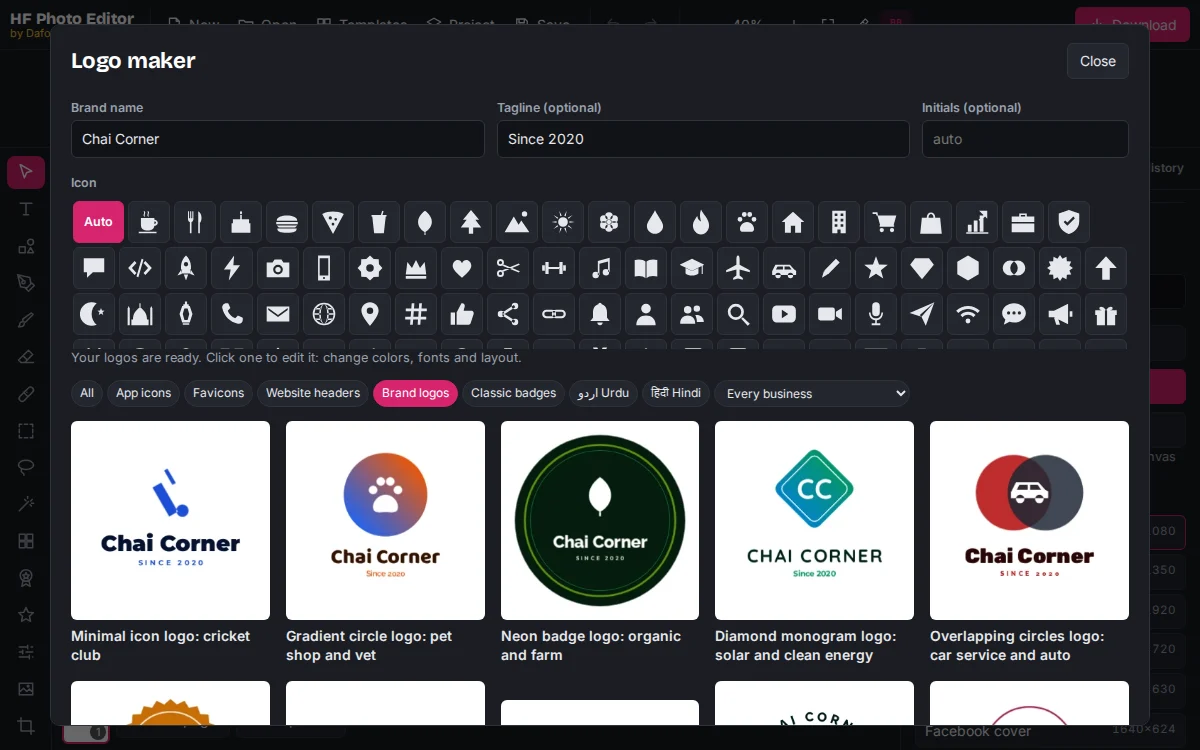
Every design updates with your name, so you compare real options instead of imagining them. Leave Icon on Auto to see the icon that suits each design, or pick one of the 185 icons (cup, house, scissors, rocket and more) to use it everywhere.
Step 2: Choose the type of logo you need
Most businesses need more than one version of their logo. Use the buttons above the designs to switch between them:
| Logo type | What it is for | Size |
|---|---|---|
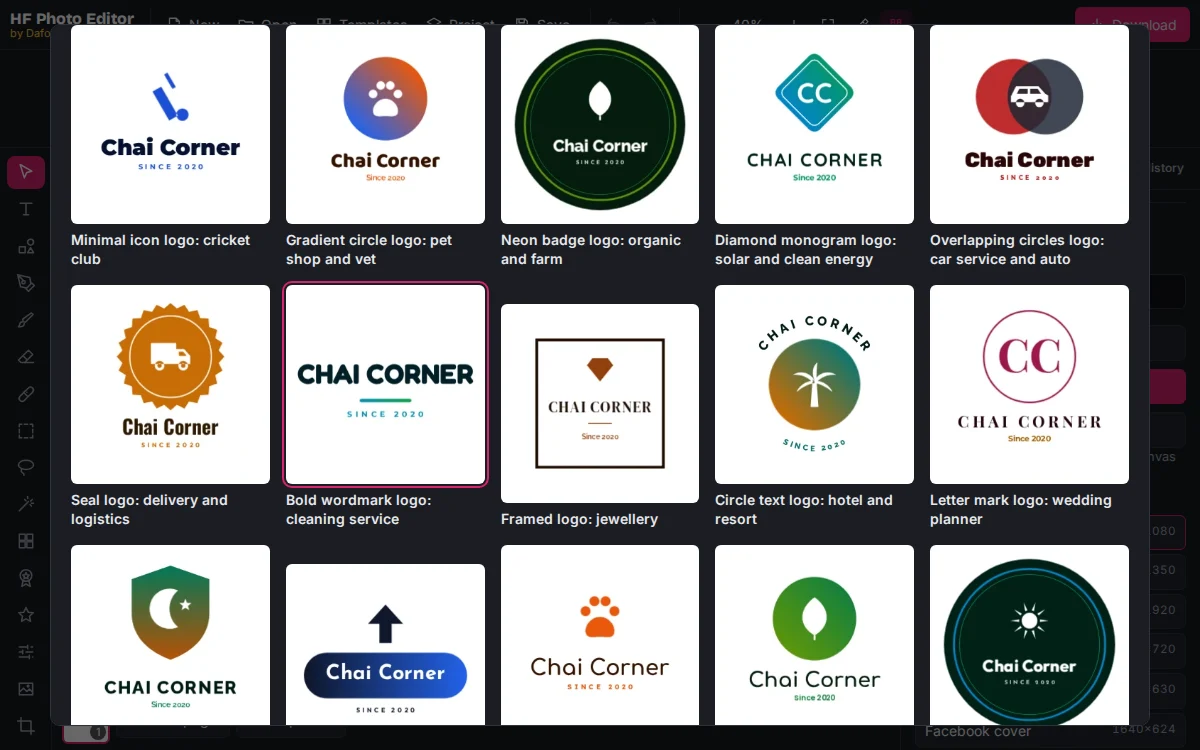
| Brand logos | Main logo for signs, cards, packaging and social media | 1000 × 1000 |
| Website headers | Wide logo for the top of your website | 1200 × 300 |
| App icons | Android (APK) and iPhone app icons | 1024 × 1024 |
| Favicons | The small icon in the browser tab | 512 × 512 |
| Classic badges | Round badges, stamps and crests | 1000 × 1000 |
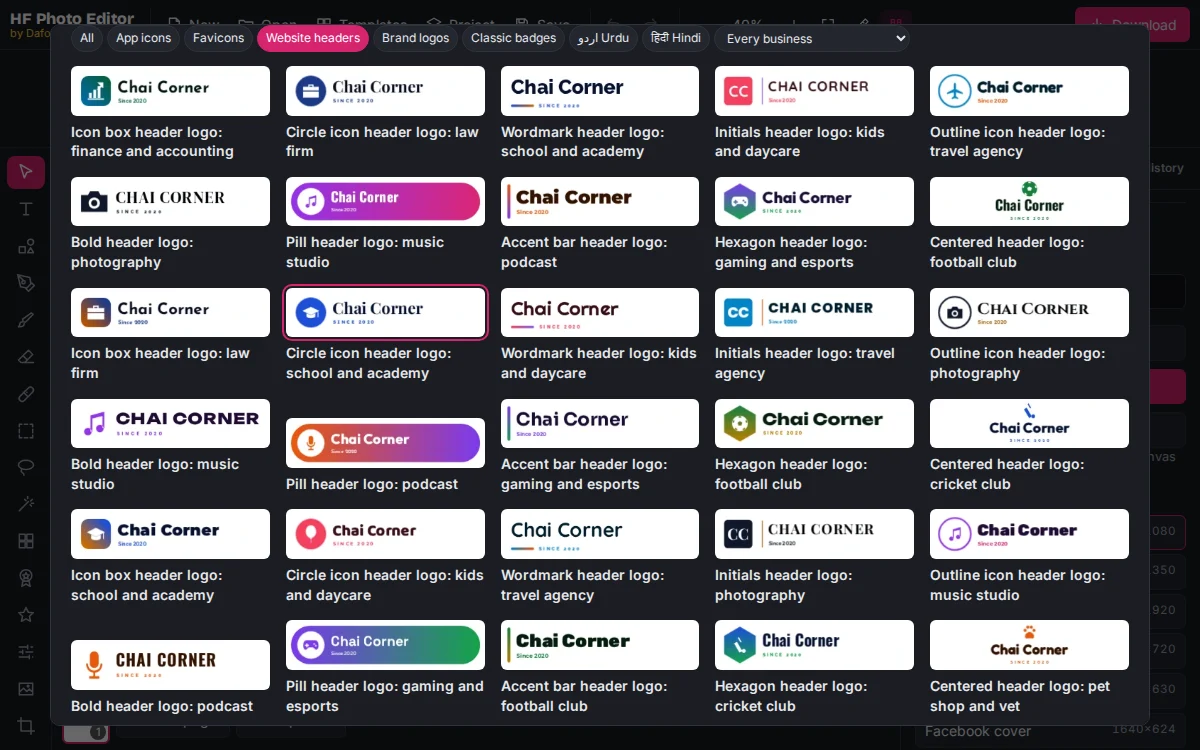
Our guides cover the Android and iPhone app icon and the website favicon step by step.
Use Every business to see only the designs made for your field. There are logos for 45 types of business, such as coffee shop and cafe logos and tech and software logos. If you prefer something traditional, try the classic badges and stamps.
Logos in Urdu and Hindi
If your customers read Urdu or Hindi, type the name in that script. The logo maker then shows Urdu logos in Nastaliq or Hindi logos in Devanagari first, with calligraphy fonts that join the letters correctly. Read our Urdu logo design tips for the best fonts and the mistakes that break Urdu letters.
Step 3: Make it yours
Click a design to open it in the editor. Every part is a separate layer, so nothing is locked.
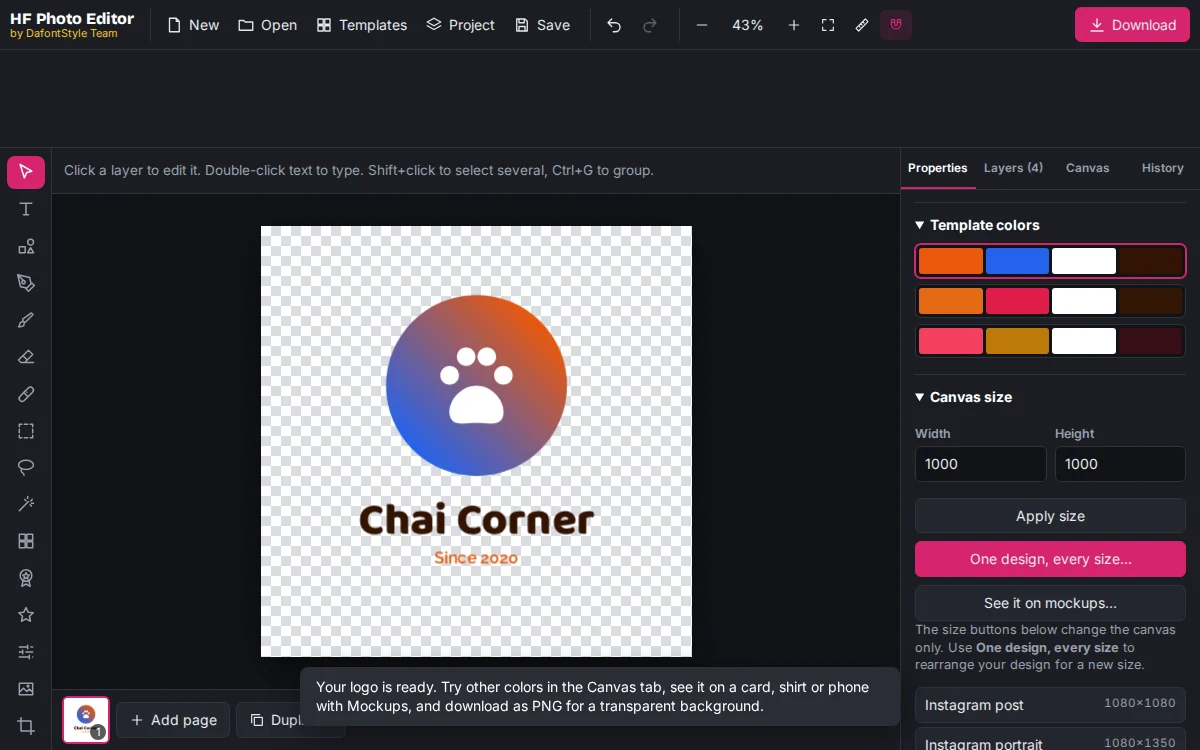
- Colors: with nothing selected, click one of the Template colors rows on the right to recolor the whole logo at once. Click any shape or text to give it your own color.
- Text: double-click the name to edit it, then choose any of 1,700+ Google Fonts in the Properties panel. Our guide on styling text with any Google Font shows more options.
- Icon: delete the icon and add another from Icons in the left toolbar.
- Layout: drag layers to move them. Drag a corner handle to resize; corners keep the proportions.
Keep the shapes simple. If you add more than three colors or two fonts, the logo starts to look busy.
Step 4: Check it on real products
A logo that looks good on a white canvas can fail on a dark shirt. Open the Canvas tab and click See it on mockups. You will see your logo on business cards, a shop sign, a T-shirt, a phone home screen, a website, a mug, a shopping bag and a social media profile.
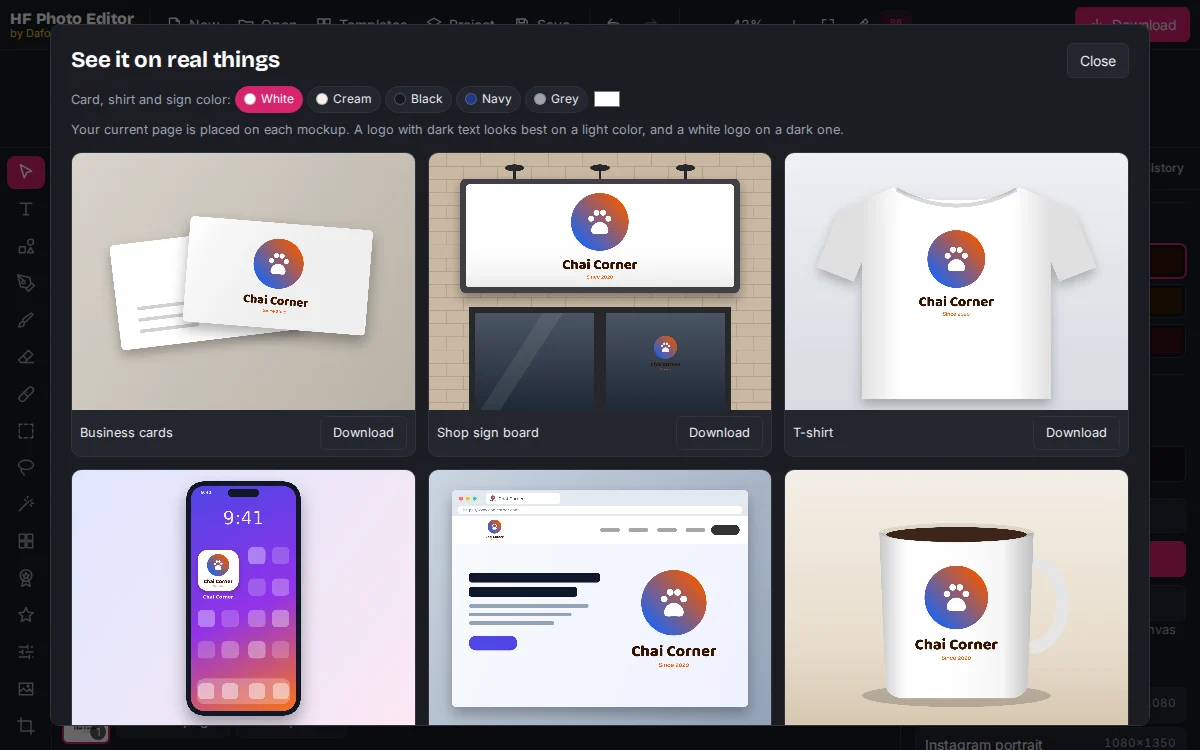
Switch the surface color between white, cream, black and navy. If the name disappears on a dark color, make a second version of the logo with white text. Each mockup has its own Download button, which is handy for showing the logo to a client or friend.
Step 5: Download your logo
Click Download. For a logo, choose:
- PNG at 3× (the default for logos). This gives a file of about 3000 pixels with a transparent background that stays sharp when zoomed or printed.
- SVG for your website and for large prints. It stays sharp at any size.
- PDF if a print shop asks for it.
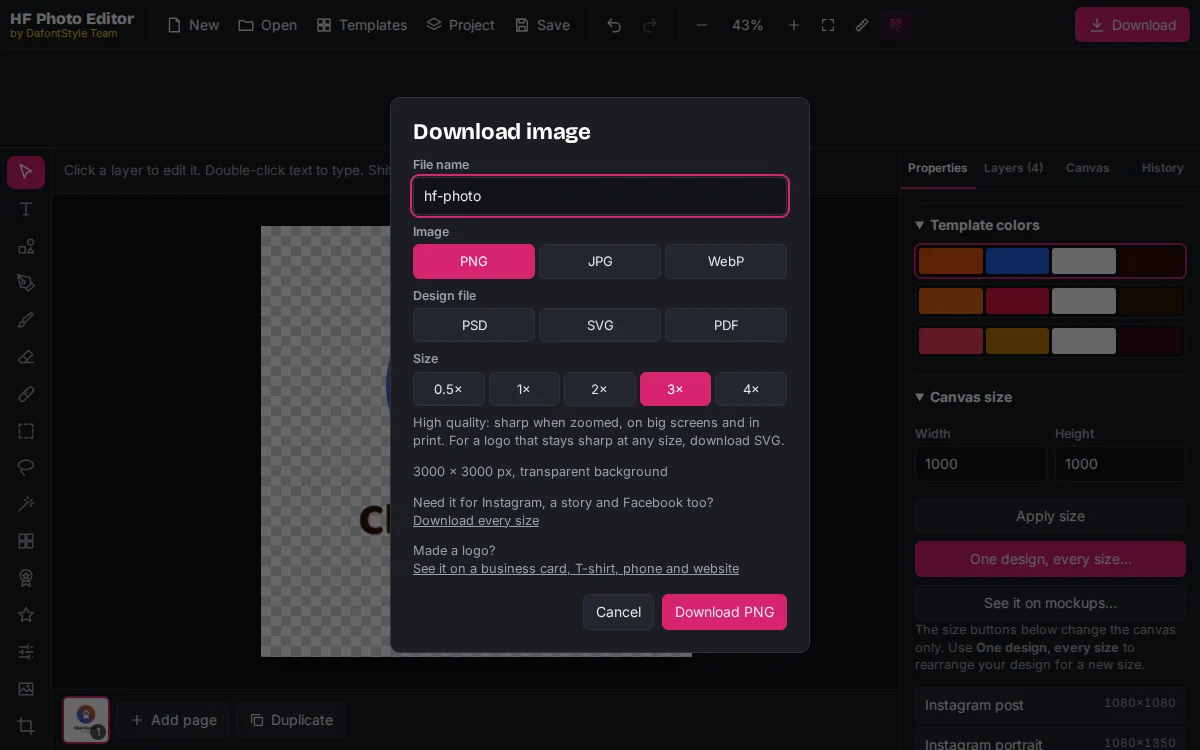
To learn why the background is see-through and how to keep it that way, read how to save it as a transparent PNG. For the exact pixel sizes of favicons, app icons and profile pictures, see our list of logo sizes for favicons, app icons and social media.
Save it in your brand kit
After downloading, open the Canvas tab and save the logo, colors and fonts in a free brand kit for your business. Then every post and flyer can use them in one click.
Save the project for later
Press Save to download the project file. Next year you can open it with Project, change a color or the tagline and export new files, without starting again.
Mistakes to avoid
- Downloading at 1×. A small file looks blurry when it is zoomed or printed. Use 3× or SVG.
- Too much text. Long taglines become unreadable on a phone. Keep the tagline to two or three words, or drop it in the small versions.
- Only one version. You need a wide version for your website, a square one for social media and a simple icon for the browser tab.
- Thin fonts on dark colors. Test the logo on black and navy in the mockups before you print anything.
Next steps
Once your logo is ready, put it to work. Add it to business card templates, use the square version as your profile picture and the icon as your website favicon. Because every file comes from the same project, all versions will match.