Passport, visa, ID card and admission forms all ask for a passport size photo. Instead of going to a studio, you can make one at home with your phone and a free editor, then print it at any photo shop for a few rupees. This guide shows the exact sizes, the rules most countries share and how to print several photos on one sheet.
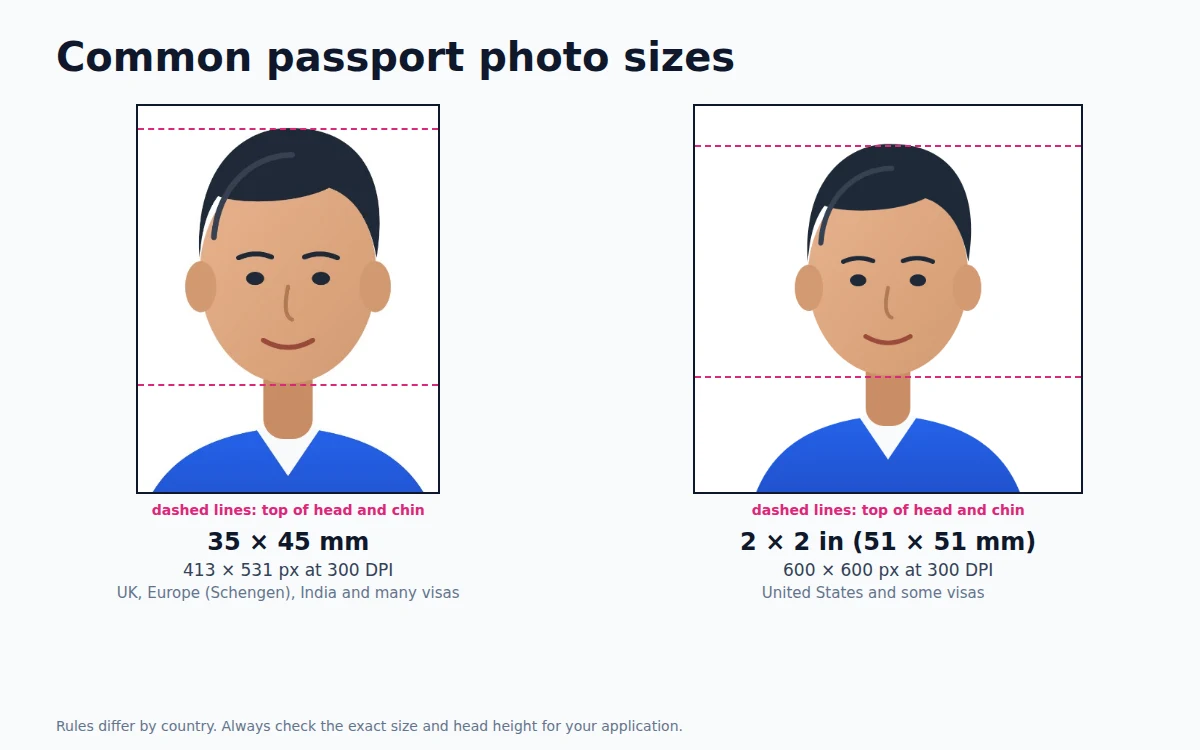
Passport photo sizes
| Size | Pixels at 300 DPI | Common for |
|---|---|---|
| 35 × 45 mm | 413 × 531 | UK, Europe (Schengen visas), India and many other countries and visas |
| 2 × 2 inches (51 × 51 mm) | 600 × 600 | United States passports and visas, and some other countries |
| 6 × 4 inch print sheet | 1800 × 1200 | Printing 8 photos of 35 × 45 mm or 6 photos of 2 × 2 in |
Rules differ by country and by office, and they change. Always check the official instructions for your application, including the head size, the background color and the file size for online forms. Some passport offices take the photo themselves at the counter; a home-made photo is then still useful for visa forms, job and admission forms, and ID cards.
The rules most countries share
- Plain, light background, usually white or off-white, with no shadows or patterns.
- Face the camera, head straight, both eyes open, mouth closed and a neutral expression.
- Head size: the head (chin to top of hair) usually fills about 70–80 percent of the height of a 35 × 45 mm photo, and 50–69 percent of a 2 × 2 inch photo.
- No glasses in many countries, and no hats unless worn for religious reasons.
- Recent: usually taken in the last six months.
- Not edited: no filters, beauty effects or changes to your face.
Step 1: Take the photo
- Stand about half a meter in front of a plain white or light wall.
- Face a window so daylight falls evenly on your face. Avoid overhead lights that cast shadows.
- Ask someone to hold the phone at your eye level, about 1.5 meters away, and take the photo without zoom.
- Take several photos and pick the sharpest one.
Step 2: Set the exact size
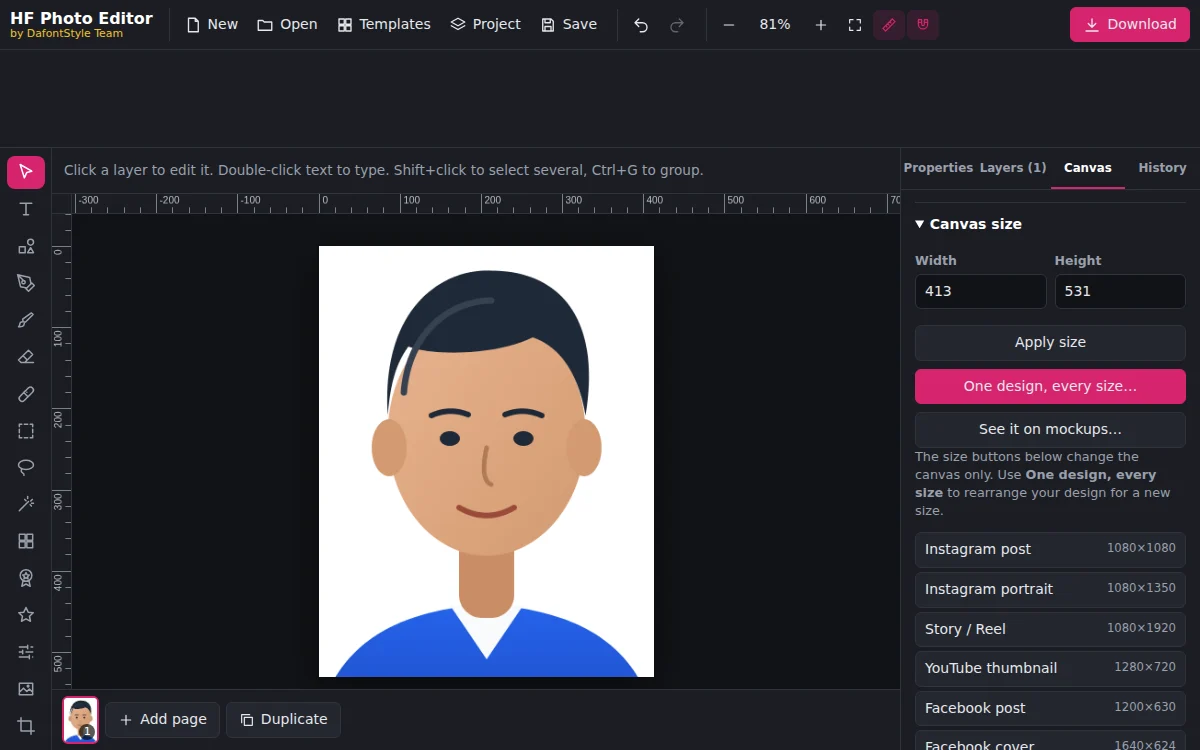
Open HF Photo Editor, go to the Canvas tab and type the size in Width and Height:
- 413 × 531 for 35 × 45 mm
- 600 × 600 for 2 × 2 inches
Press Apply size. Then click Add image and choose your photo.
Step 3: Position and size the head
Click the photo and type a new W in the Properties panel, or drag a corner, until the head has the right size. Drag the photo so the face is centered with a small gap above the hair.
Press Ctrl+R to show the rulers and drag guides from them to mark the top of the head and the chin. For 35 × 45 mm, the chin to top of the head is usually 32–36 mm, which is about 375–425 pixels on the 531 pixel canvas. Check your country's exact numbers.
If you need to resize a photo for other purposes too, see how to resize a photo without stretching it.
Step 4: Make the background white (if allowed)
If the wall behind you was not plain enough, select the photo and press Remove background (AI) under Cut out and mask, then set the canvas Color to white (#ffffff) in the Canvas tab. Our AI background remover guide explains how to clean up the edges around hair.
Some countries do not accept photos with a replaced background. If the rules say the photo must not be edited, retake it in front of a white wall and only crop and size it.
Step 5: Download for online forms
Click Download, choose JPG and set the size to 1×. You get exactly 413 × 531 (or 600 × 600) pixels.
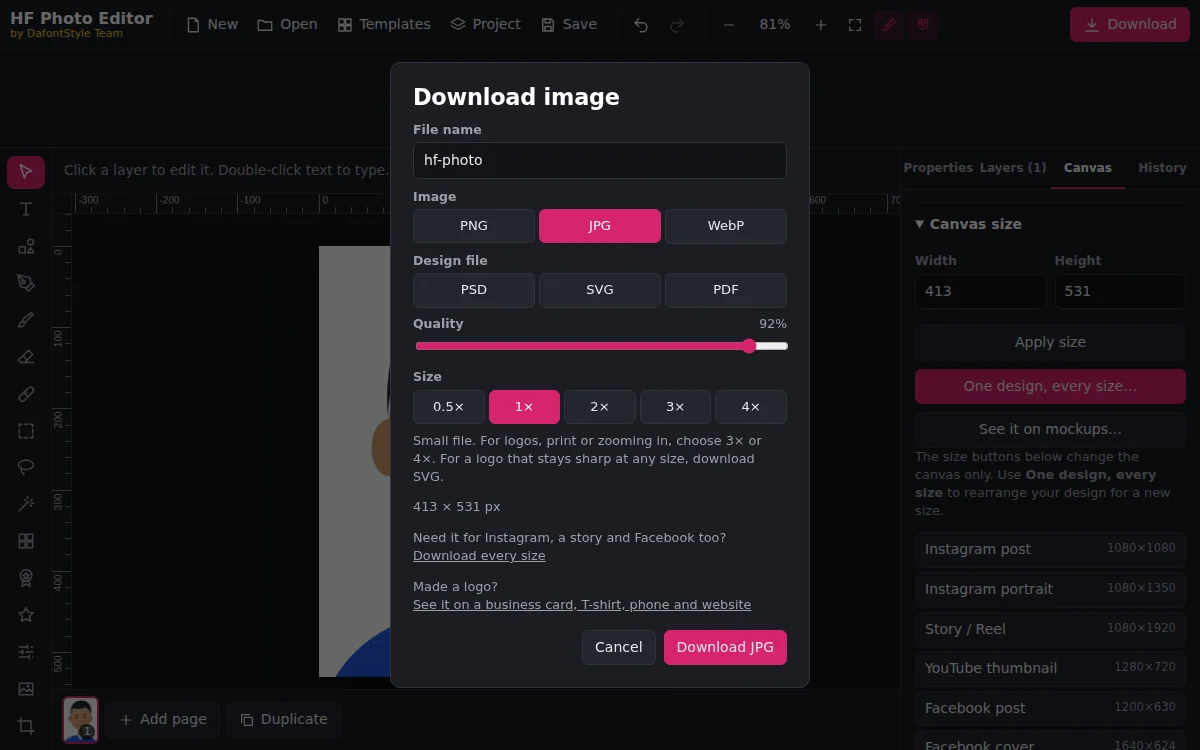
Many online forms limit the file size, for example to a few hundred kilobytes. If the file is too large, lower the Quality slider to around 80 percent and download again.
Step 6: Print 8 photos on one sheet
Photo shops print 6 × 4 inch (4R) photos cheaply, and one sheet can hold all the copies you need.
- Click New, then in the Canvas tab type 1800 in Width and 1200 in Height and press Apply size.
- Click Add image and choose the passport photo you downloaded.
- Type 413 in W so the photo is exactly 35 × 45 mm (or 600 for 2 × 2 inches).
- Press Ctrl+D to duplicate it and drag the copies into two rows of four (or two rows of three for 2 × 2 inches). Turn on the grid in the Canvas tab to line them up.
- Download as JPG at 1×.
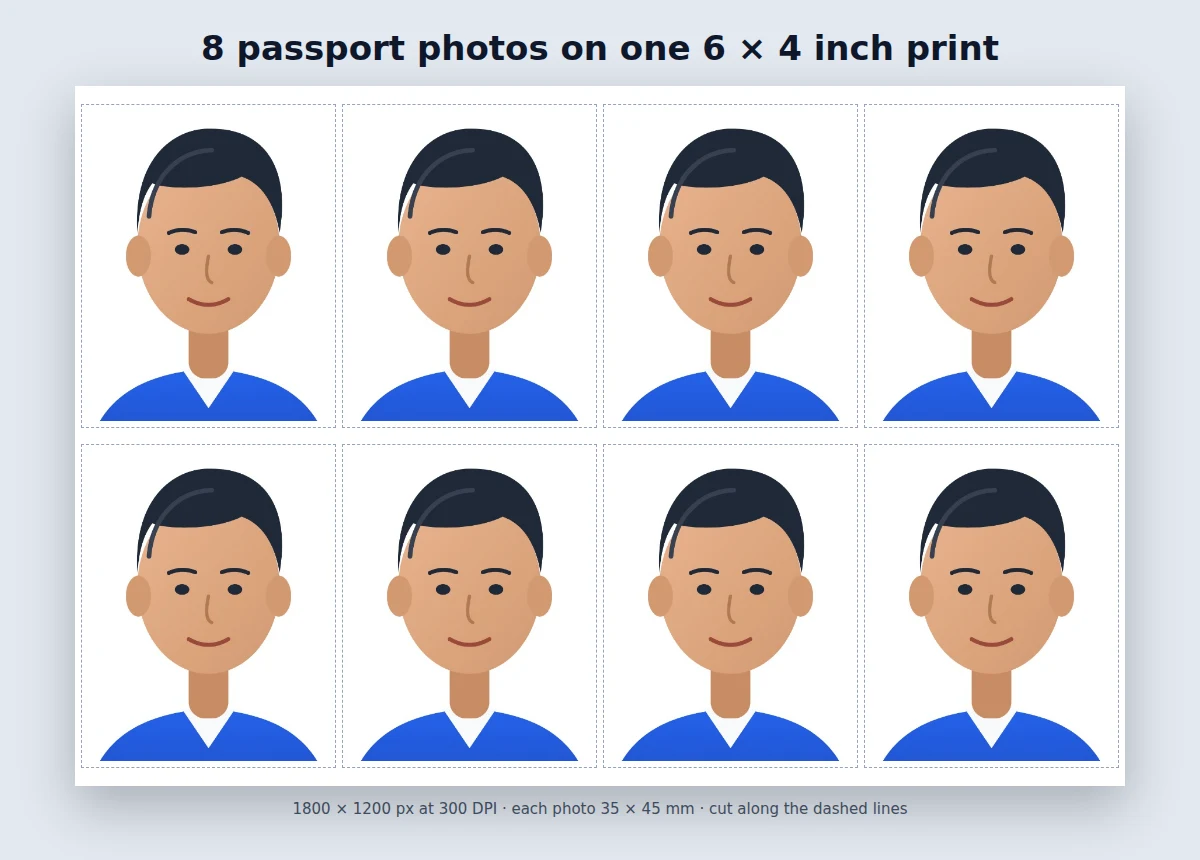
Ask the shop to print it at actual size (100 percent, no "fit to page"), so every photo comes out at the exact size. Then cut along the edges.
Common mistakes
- Head too small. A full-body or half-body photo makes the face tiny. Fill the frame as the rules say.
- Shadows behind you. Stand away from the wall and use window light.
- Printing with "fit to page". The photos come out slightly smaller than 35 × 45 mm. Always print at 100 percent.
- Wrong format. Most forms want JPG, not PNG or PDF.