Every platform crops photos differently. Uploading the wrong size leads to cut-off heads, blurry thumbnails and black bars. Starting from the right canvas size solves this.
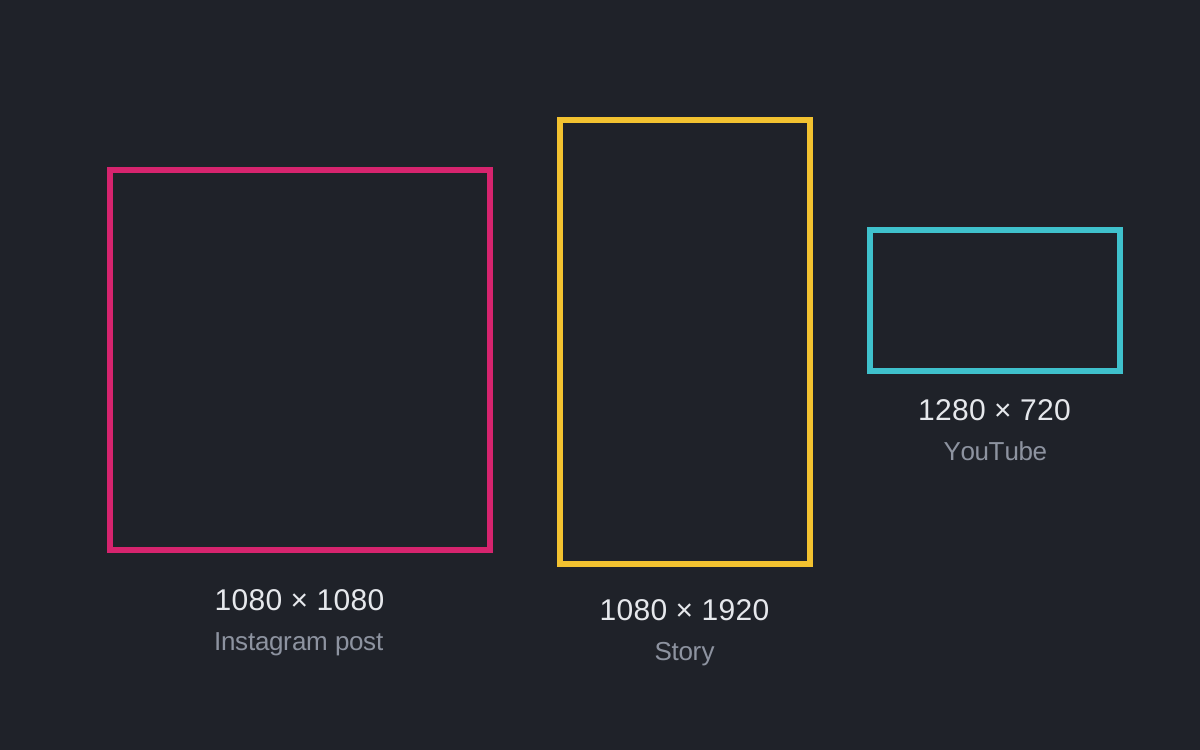
Common sizes
| Where | Size (pixels) | Shape |
|---|---|---|
| Instagram post | 1080 × 1080 | Square |
| Instagram portrait | 1080 × 1350 | 4:5 |
| Story or Reel | 1080 × 1920 | 9:16 |
| YouTube thumbnail | 1280 × 720 | 16:9 |
| Facebook post | 1200 × 630 | About 1.9:1 |
| Facebook cover | 1640 × 624 | Wide |
| Pinterest pin | 1000 × 1500 | 2:3 |
How to resize a photo without stretching it
- Open your photo in HF Photo Editor.
- Go to the Canvas tab and choose a size, for example YouTube thumbnail.
- Click your photo and press Fill canvas in the Image section. The photo scales evenly to cover the frame.
- Drag the photo to choose which part stays in view.
- Add text or shapes if you like, then press Download.
Cropping instead
If you only want to cut part of a photo, use the Crop tool. Pick a ratio such as 1:1 or 16:9, move the frame, and press Apply crop.
Keep it sharp
Download at 1× for normal posts. Use 2× when you need extra detail, for example for a print or a large banner.